Reconcile easily invoices using AI data extraction tools
A practical guide to preparing invoice and transaction tables for reconciliation, with partial-payment examples and checks before confirming a match.
Invoice reconciliation starts with a simple question: which payment belongs to which invoice? Answering it becomes harder when references are buried in PDFs, bank descriptions are incomplete and payments cover several documents.
AI data extraction tools can prepare consistent tables for that review. IntoExcel.com extracts selected fields from PDFs and images into Excel. It does not automatically reconcile invoices, connect to your bank or confirm that a bill has been paid. This guide focuses on preparing data and reviewing matches in your own workbook.
1. Define what you are comparing
Here, invoice reconciliation means comparing invoices with payment records. Comparing an invoice with a purchase order or delivery record is a different check and may require quantities and item details.
Choose the relevant account and period, but remember that payment can occur after the invoice date. Keep original documents available. A missing payment in one statement does not prove an invoice is unpaid.
2. Prepare two separate tables
Extract invoices with one row per document. Extract bank statements with one row per item to request individual transactions. Select transaction-level custom fields when you need specific bank columns.
| Invoice table | Transaction table |
|---|---|
| Supplier or customer | Counterparty or description |
| Invoice number | Payment reference |
| Invoice date and due date | Transaction date |
| Total and currency | Amount and currency |
| Original document reference, added manually | Statement or transaction reference |
Use Text for identifiers to preserve leading zeros and Number for unambiguous amounts. Keep currency in a separate field. IntoExcel offers Auto, Text, Number, Percentage and Currency for custom fields; a field can only be extracted when the source supports it.
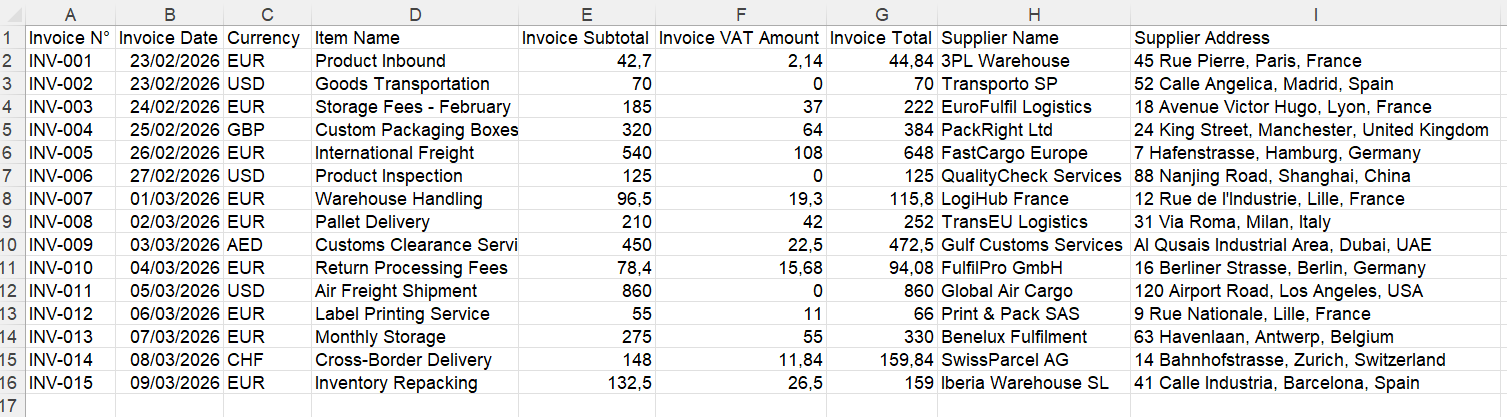
Document rows provide a starting point for comparing invoice totals.
Keep one distinct document per file. The current extraction processes the first distinct document and returns at most 500 rows per file. Review notices and compare transaction counts with the statement before proceeding.
3. Extract and check the source values
Open the IntoExcel extraction page, choose fields and row mode, then review the editable results before exporting. Process invoices and statements as separate batches so their columns remain appropriate.
Missing values become blank cells. Do not turn a missing amount into zero or invent a payment reference. Dates remain text, so standardize their interpretation before comparing periods. Confirm whether bank debits appear as negative numbers or in a separate column.
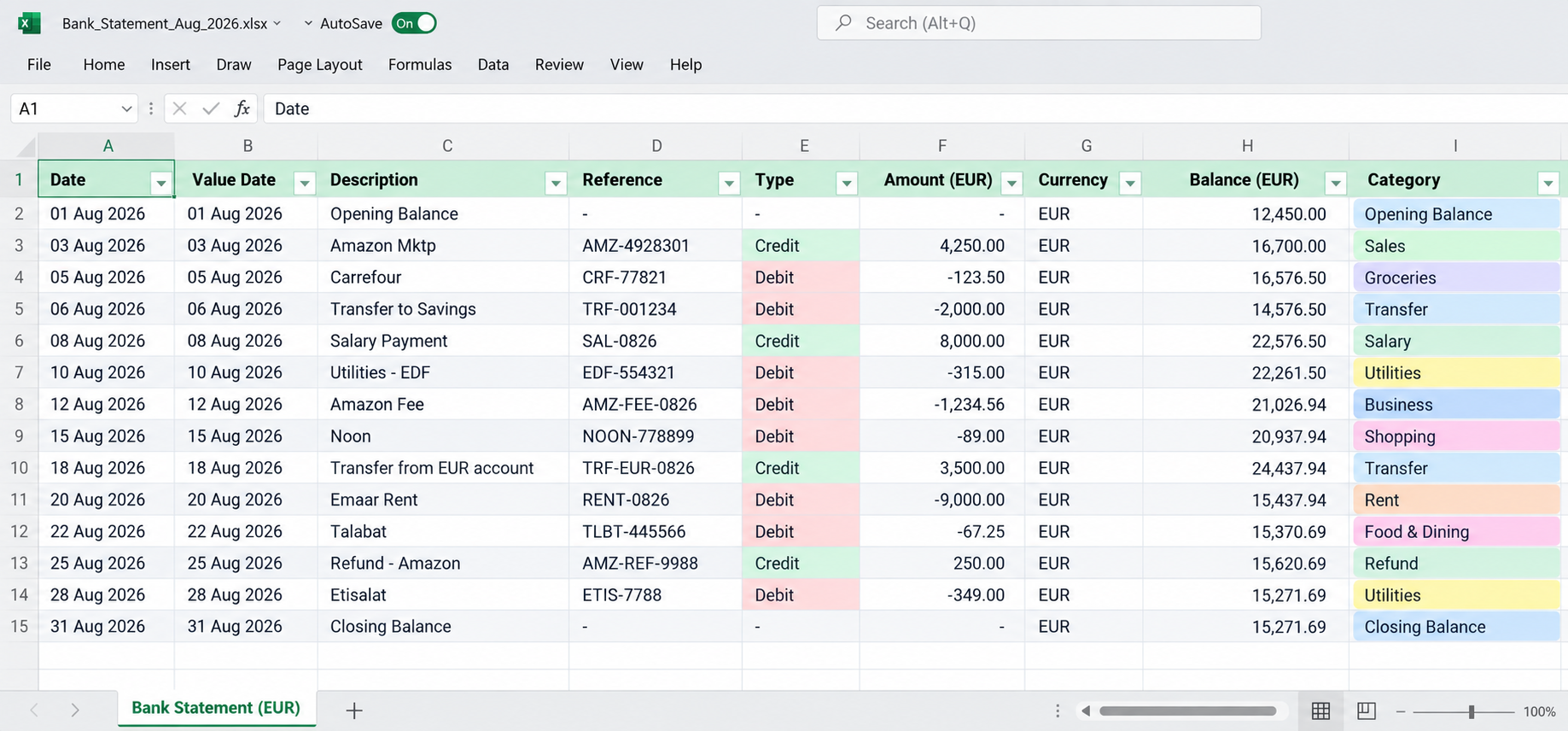
Example of a transaction table. Formatting and additional analysis shown are illustrative, not a promise of automatic categorization or reconciliation.
IntoExcel may retain an uncertain currency symbol such as $ or kr. Confirm it from the document; the app does not convert exchange rates. Equal amounts in different currencies are not a match.
4. Identify candidate matches, then verify them
In your workbook, compare reference, counterparty, amount and currency together. Use dates as supporting evidence, allowing for the actual payment timeline. A matching amount alone is weak evidence when several invoices share that amount.
Add manual review columns such as “Candidate payment”, “Status”, “Difference” and “Evidence”. These are your workbook controls, not automatically generated IntoExcel reconciliation results.
Hypothetical examples, not customer results:
| Invoice | Payment evidence | Review outcome |
|---|---|---|
| INV-101, EUR 120 | EUR 120 with the same reference and supplier | Candidate match; confirm source records |
| INV-102, EUR 300 | Two linked payments of EUR 100 and EUR 200 | Check both allocations before closing |
| INV-103, EUR 500 | EUR 495 with an incomplete reference | Investigate; do not assume a fee |
Where appropriate, calculate invoice total minus payments allocated to that invoice, using the same currency and a consistent sign convention. A zero difference is a useful check, not independent proof of the allocation.
5. Keep exceptions visible
One payment may cover several invoices, and one invoice may have several payments. Record allocations so the same transaction is not counted twice.
Investigate credit notes, refunds, bank charges, exchange differences and duplicate uploads separately. Do not force a match simply to clear the table. If evidence is incomplete, leave the item marked for review.
Use invoice totals from document-level rows. In item-level exports, a shared invoice total may repeat across products and must not be summed repeatedly.
6. Save the review trail
Keep the original documents, extracted tables and your reviewed workbook together. Note who checked an exception, what evidence supported the decision and which records were linked. Posting adjustments or marking invoices paid should follow your normal accounting review.
For related preparation steps, read how to extract invoices into structured Excel and a daily bookkeeping routine with IntoExcel.
Start with a small batch on the IntoExcel.com extraction page. The benefit is a consistent set of fields to compare; accurate reconciliation still depends on checking the evidence behind each match.
Ready to try it yourself?
Stop wasting hours on manual data entry. Extract your PDF data to Excel instantly with our AI-powered tool.
Extraction