How to facilitate your daily accounting with intoExcel.com
Build a repeatable daily routine for invoices and receipts: collect files, extract the right fields, check exceptions and export a useful Excel register.

Daily bookkeeping becomes harder when invoices sit in different folders, receipts arrive as photos and the same amounts must be typed into a spreadsheet. A repeatable document routine can make that preparation more manageable.
IntoExcel.com helps with the document-to-table part: upload PDFs or images, select fields, review extracted values and export to Excel. It does not replace your accounting system or decide how a transaction should be posted. The aim is to prepare clearer data for your own review or your accountant.
1. Collect the day’s documents in one place
Create a working folder for incoming invoices and receipts. Keep the original files and use recognizable filenames, such as a supplier name and invoice reference. Separate documents that still need review from those already checked.
Upload one distinct document per file. A single invoice can span several pages, but separate invoices combined in one PDF should be split first: the current extraction processes only the first distinct document.
Check that photos include the complete document and that scans are readable. Missing pages or a cropped total cannot reliably be recovered by extraction.
2. Define a consistent daily invoice register
Start with a small set of useful columns rather than every available field.
| Column | Suggested type | What to check |
|---|---|---|
| Supplier | Text | Consistent identification |
| Invoice reference | Text | Leading zeros and duplicate references |
| Invoice date | Text | Ambiguous day/month order |
| Due date | Text | Whether it actually appears on the invoice |
| Subtotal, tax amount and total | Number | Agreement with the source |
| Tax rate | Percentage | Multiple rates on one document |
| Currency | Currency | Clear code or unresolved symbol |
Add a custom field such as a project reference when that information appears on the document. Custom fields support Auto, Text, Number, Percentage and Currency. A field name tells the AI what to look for; it does not create information absent from the source.
Missing values become empty cells. Do not treat a blank tax amount as proof that no tax applies.
3. Choose document rows or item rows
For a daily register, choose one row per document. This keeps an invoice’s main values together and makes reviewing a batch easier.
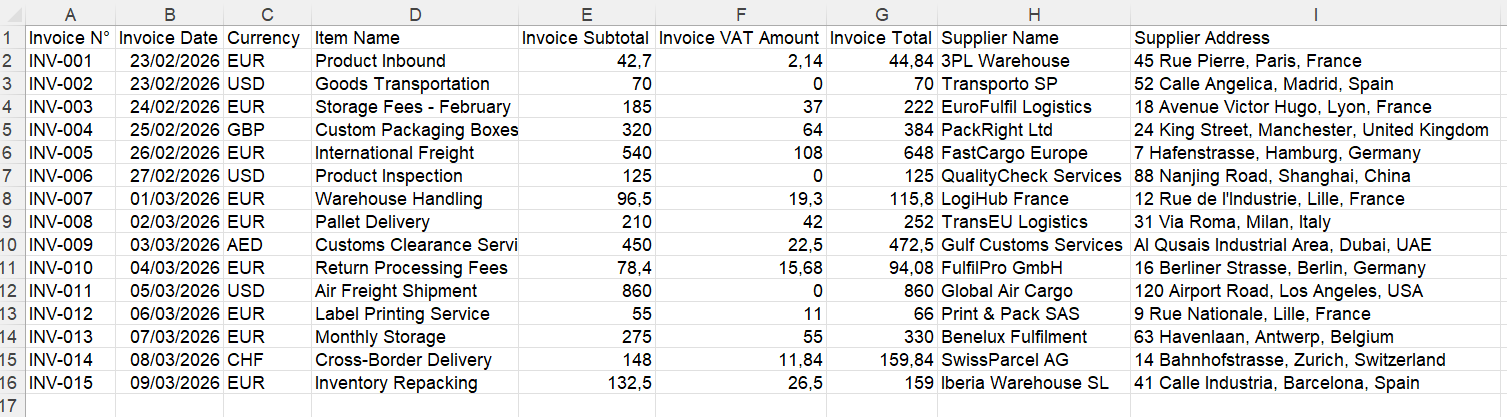
Example of a document-level register for reviewing invoice data.
Choose one row per item when you need product descriptions, quantities or line amounts. Shared invoice fields may repeat, so avoid adding the full invoice total once for every item.
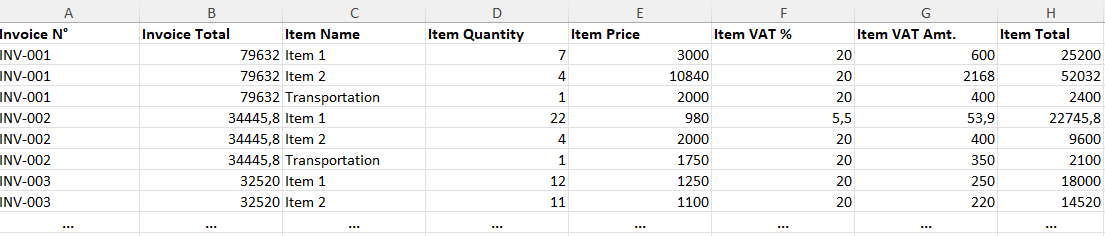
Item rows are useful for detailed checking; repeated document totals should not be counted again.
The current extraction returns at most 500 rows per file. Review notices about limits, ambiguity or missing repeated items before relying on the table’s completeness.
4. Extract, then resolve the exceptions
Open the IntoExcel extraction page, upload a small batch, choose fields and row mode, and start extraction. Review the editable table before exporting.
Use a consistent checklist:
- Compare supplier, reference and date with the original.
- Check subtotal, tax and total, including any discounts or adjustments.
- Verify negative amounts and credit notes.
- Inspect blank, uncertain or unexpectedly repeated values.
- Compare the number of extracted items with the source when using item mode.
Hypothetical example: your daily batch contains four invoices and one credit note. Review each document separately, especially the credit note’s sign. If one currency is shown only as “$”, confirm it from the source instead of assuming USD. This is an example workflow, not a customer story or a measured time saving.
IntoExcel can retain an uncertain currency symbol. It does not convert exchange rates, establish payment status or automatically match invoices to bank transactions.
5. Export a workbook you can keep using
Export the checked results to Excel with the same column names for each batch. Before combining files, check for duplicates using supplier and invoice reference, supported by date and amount. Do not assume that a second copy is a new expense.
Unambiguous amounts are exported as numeric cells; their decimal display can depend on Excel settings. Dates remain text, so standardize them if chronological sorting matters. Keep different currencies separate when calculating totals.
In your own workbook, you can add review notes, an original-file reference and a payment-check column. These are manual additions to your process, not automatic IntoExcel tracking. Confirm payment against supporting records rather than marking an invoice paid because it was extracted.
6. Prepare a clear handoff
Keep the reviewed workbook with the source documents. Mark unresolved questions clearly so the next reviewer knows which values still need attention. IntoExcel prepares extracted data; account coding, tax treatment, payment decisions and final bookkeeping remain separate tasks.
For a fuller extraction walkthrough, read how to extract invoices into a structured Excel file.
Begin with a small daily batch on the IntoExcel.com extraction page. Reuse your field selection, check exceptions and export only after reviewing the results. A consistent routine is more useful than a large spreadsheet nobody has checked.
Ready to try it yourself?
Stop wasting hours on manual data entry. Extract your PDF data to Excel instantly with our AI-powered tool.
Extraction