How to extract invoices into a structured excel file
A practical invoice-to-Excel workflow covering column selection, document versus item rows, numeric formats and checks before using your spreadsheet.

A useful invoice spreadsheet is more than copied text. Each column should represent one field, each row should have a clear meaning, and amounts should be usable in calculations. That is the difference between collecting invoice text and extracting invoices into a structured Excel file.
With IntoExcel.com, you can upload PDF invoices or images, choose the fields you need, review the extracted table and export to Excel. This guide explains how to prepare the structure before you press Extract.
1. Decide what one Excel row should represent
Choose the row mode according to your purpose:
| Structure | Suitable purpose | Fields to include |
|---|---|---|
| One row per document | Invoice register and overall spend review | Supplier, invoice number, date, subtotal, tax, total, currency |
| One row per item | Product or service detail | Invoice number, description, quantity, unit price, line amount, currency |
For a hypothetical example, an invoice with three product lines produces one summary row in document mode, or three rows in item mode when the entries are identifiable. Shared details such as the invoice number may repeat on each item row.
Do not add repeated invoice totals together in an item-level table. Sum the appropriate line amounts, or use a separate document-level export for invoice totals.
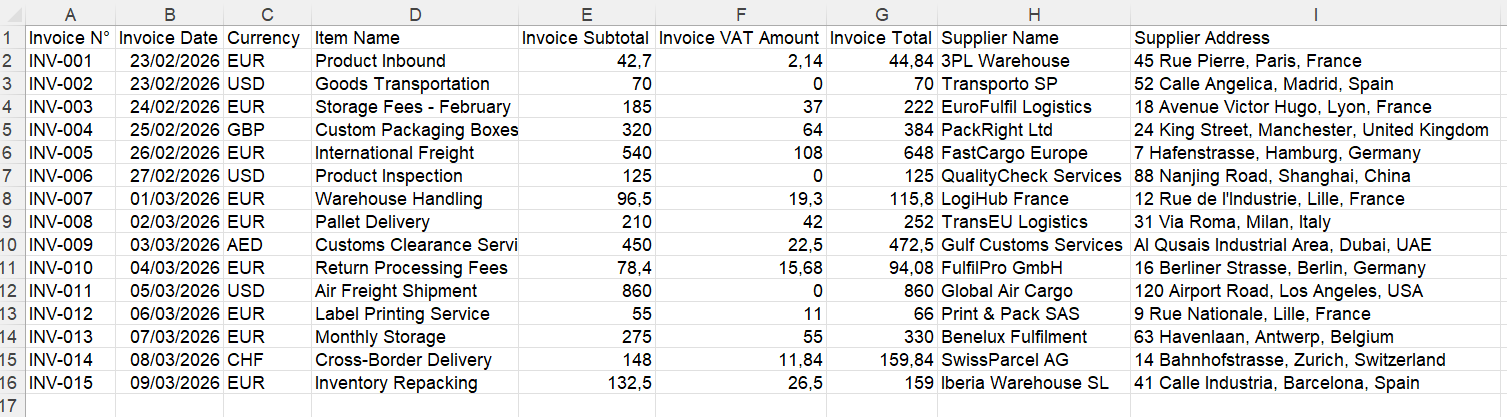
Example of an invoice register with document-level rows.
2. Prepare readable invoice files
Keep one distinct invoice per file. A multi-page invoice can remain together, but a PDF containing several separate invoices should be split first: the current extraction prompt processes only the first distinct document.
For scanned invoices, check that page edges, amounts and item descriptions are visible. Avoid cropped totals, blurred photos and missing pages. A readable original makes checking the extraction easier; AI does not guarantee that every scan will be interpreted correctly.
Keep the originals so you can compare uncertain values with the source.
3. Choose consistent columns and field types
Open the IntoExcel extraction page. Expand the invoice field category and select the fields you want, or use its Select all button. Add custom fields for information specific to your workflow.
| Suggested column | Field type | Reason |
|---|---|---|
| Invoice number or purchase order reference | Text | Preserve leading zeros and letters |
| Supplier and invoice date | Text | Keep names and date text |
| Subtotal, tax amount and total | Number | Enable calculations when the value is unambiguous |
| Tax rate | Percentage | Display a rate as a percentage |
| Invoice currency | Currency | Keep the currency separate from the amount |
| Project reference or cost centre | Text | Capture a requested custom identifier |
Custom fields offer Auto, Text, Number, Percentage and Currency. Use a precise name such as “Purchase order reference” rather than “Reference” if an invoice contains several identifiers. Auto lets extraction infer the type; explicit types give you more control.
These columns are suggestions, not a promise that every invoice contains every value.
4. Select the row mode and extract
Before extraction, choose one row per document or one row per item. Apply the same field selection to documents you intend to compare.
In document mode, repeated values may be combined into a text summary. For individual quantities, prices and descriptions, item mode is usually the more useful structure.
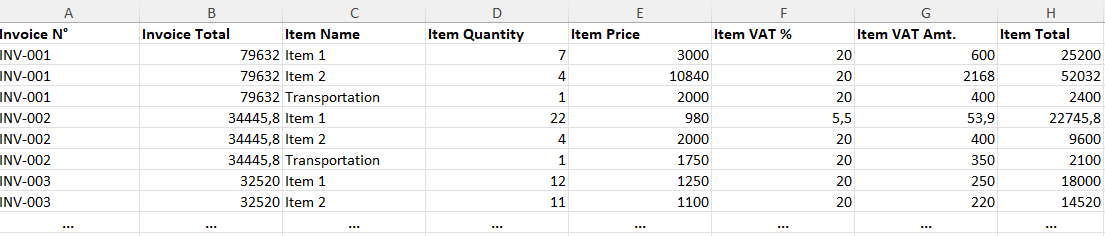
Example of an item-level export. Shared invoice fields can repeat.
The current output is limited to 500 rows per file. Review any limit or ambiguity notice. If no repeated items are found, extraction can return a document row instead; do not interpret that as proof that the original contains only one item.
5. Check values before exporting to Excel
Review the editable table against the originals:
- Compare invoice numbers, suppliers and dates.
- Check subtotal, tax and total against the document, including discounts or adjustments.
- Confirm the number of extracted items and their quantities.
- Check negative amounts and credit notes.
- Investigate blanks instead of replacing them automatically with zero.
Missing values become empty Excel cells. A genuine zero and missing information have different meanings.
Unambiguous amounts are exported as numeric cells. Excel can display decimal and grouping separators according to its settings, so a French comma or English decimal point should not require storing the amount as text. Dates currently remain text; standardize their format separately if you need reliable chronological sorting.
Percentage fields use numeric fractions with percentage formatting. Currency fields use codes when the document is clear, while uncertain symbols such as $ or kr may remain unchanged. IntoExcel does not convert exchange rates: keep different currencies separate when calculating totals.
6. Export and keep the structure reusable
Export the reviewed table to an Excel workbook. Use consistent column names for the next batch and keep document-level totals separate from item-level analysis. Before combining exports, check for duplicate invoices using supplier and invoice reference rather than assuming every row is unique.
A structured file gives you a clearer starting point for sorting, checking and reporting; the source invoice remains your reference for disputed or missing values.
Start with a small representative batch on the IntoExcel.com extraction page. Choose the columns and row mode first, review the results, then reuse that structure for your next invoices.
Ready to try it yourself?
Stop wasting hours on manual data entry. Extract your PDF data to Excel instantly with our AI-powered tool.
Extraction