From PDF Invoices to Excel: How IntoExcel Helps Businesses Worldwide
A practical workflow for organizing invoices from different suppliers and countries into consistent, reviewed Excel columns.

An international supplier may send a PDF with a different layout, currency or date convention from the invoice next to it. Copying those details into a spreadsheet means deciding what belongs in each column every time.
IntoExcel.com helps turn PDF invoices and images into a table with fields you choose. You can review the extracted data before downloading Excel, giving your team a consistent working structure across suppliers. This guide describes the current workflow as of October 25, 2026, without assuming every language or document will extract correctly.
Start with a shared set of columns
The most useful PDF invoice to Excel workflow starts with the spreadsheet you need. A purchasing team may want one invoice total per supplier; an inventory team may need each product separately.
| Suggested column | Field kind | Why it matters |
|---|---|---|
| Supplier and invoice reference | Text | Preserve names and leading zeros |
| Invoice date and due date | Text | Review ambiguous date order |
| Subtotal, tax amount, total | Number | Keep calculable amounts |
| Tax rate | Percentage | Distinguish rates from monetary amounts |
| Currency | Currency | Keep the unit separate from the amount |
| Product description and quantity | Text / Number | Useful for item rows |
Choose default fields or create custom ones by entering a name and selecting Auto, Text, Number, Percentage or Currency. These are suggested working columns, not a complete statutory invoice checklist.
How to extract invoices into Excel
- Open the IntoExcel extraction page.
- Upload a readable PDF or image, keeping one distinct document per file.
- Select the fields you need. Expanding a category does not select its fields; use individual selections or Select all.
- Choose one row per document or one row per item.
- Extract, review the editable results and export Excel.
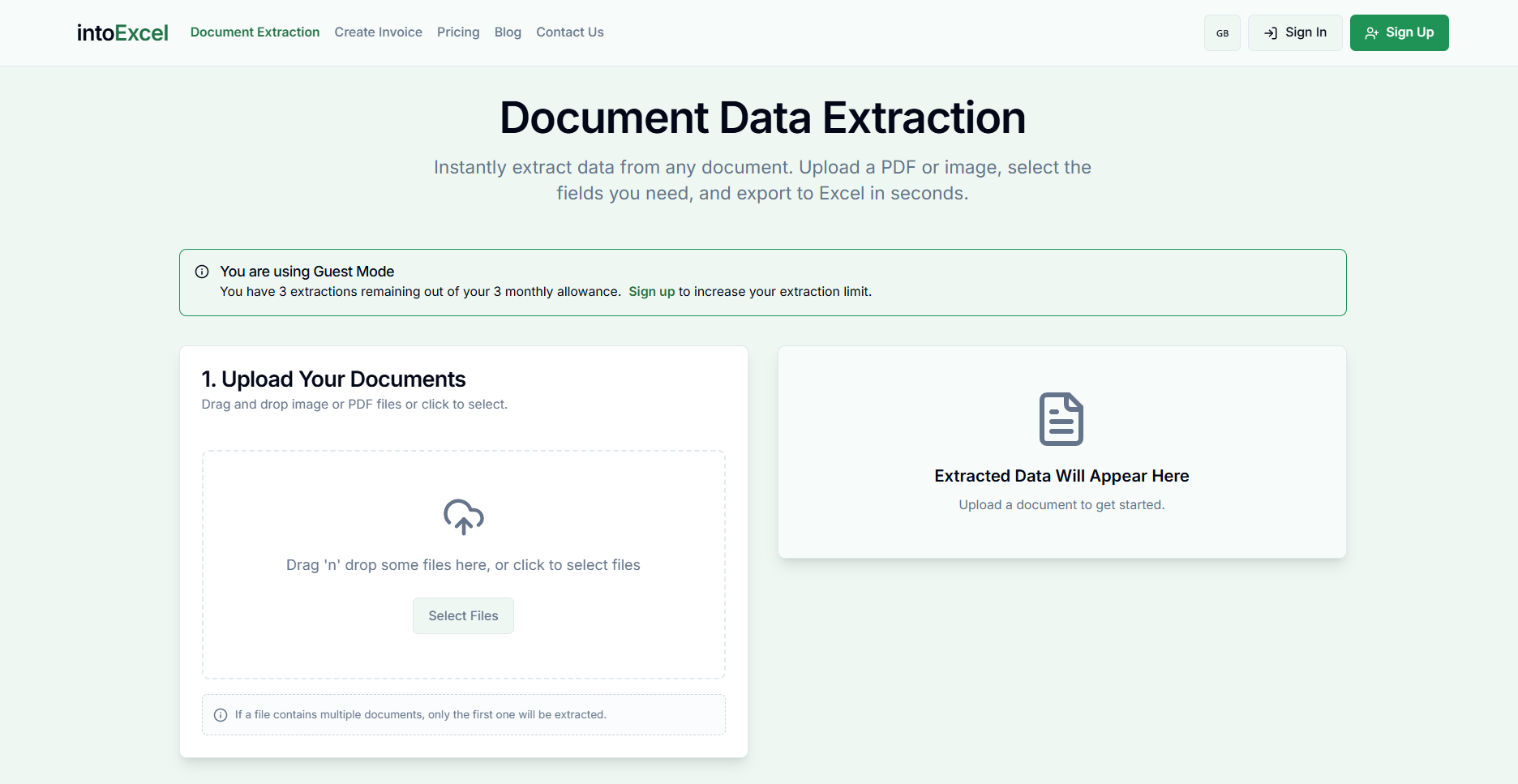
Keep all relevant pages, readable headings and uncropped totals. A clear digital PDF is a useful starting point; scans and images still need enough detail to distinguish digits.
One invoice row or one item row?
One row per document creates a compact invoice register for filtering by supplier, reference or currency. It suits a summary view.
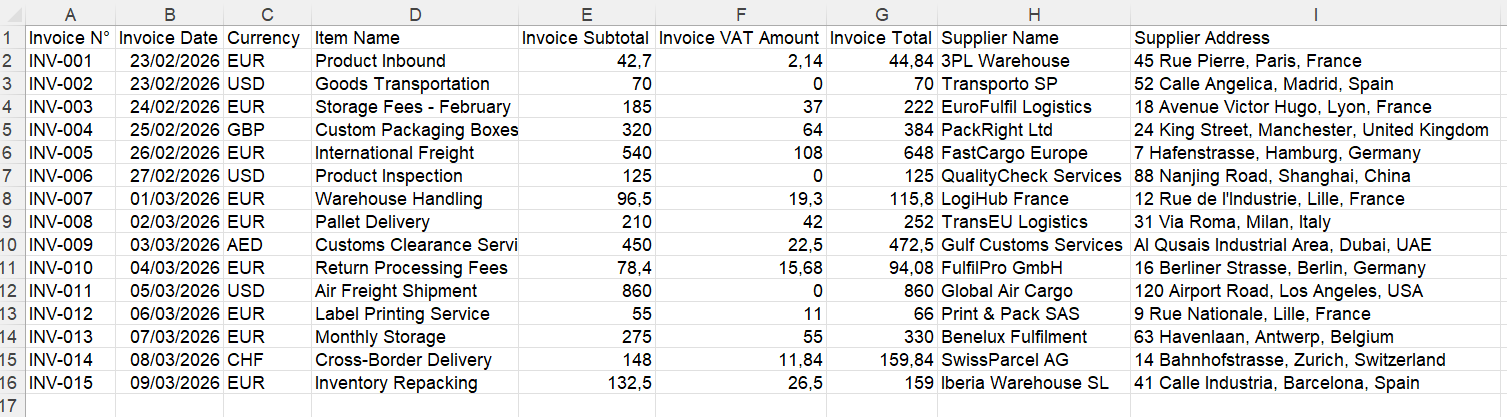
One row per item is intended for repeated entries such as products or service lines. Shared invoice details may repeat alongside each item, so do not add repeated invoice totals as if each were a separate purchase.
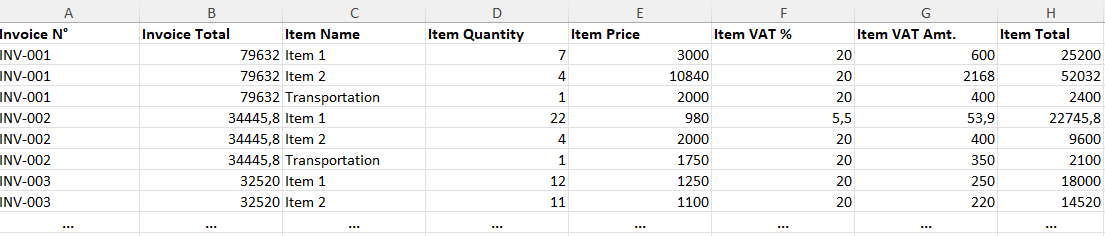
These screenshots illustrate output layouts; they do not guarantee identical results for every invoice.
Handle currencies and regional formats carefully
A document may show an amount as 1 234,25, 1,234.25 or 1234.25. IntoExcel asks the extraction model to interpret the document's convention and return numeric values where clear. If the value is ambiguous, it should preserve source text rather than force a number. Check those cells before calculating.
Numeric Excel cells are different from text that merely looks numeric. Excel on Windows normally uses system regional separators; see Microsoft's separator guidance. Changing the display does not correct a wrongly extracted amount.
For Currency fields, the app requests a code when the document clearly establishes it: EUR, USD or SEK, for example. A bare $ or kr may remain a symbol when uncertain. The app does not automatically convert amounts between currencies. Group totals by currency unless you apply a documented exchange-rate process yourself.
Percentage fields use fractional values: a clear 20% is represented numerically as 0.2 and formatted as a percentage in the workbook. Dates remain text; verify whether a value such as 04/05/2026 means April 5 or May 4 before standardizing it.
The interface is available in English, French, German, Spanish and Italian. Interface language does not establish the document's currency, number convention or extraction accuracy.
A hypothetical cross-border workflow
Imagine a small shop receiving EUR invoices and another invoice marked only “$”. It selects the same columns for each file, reviews the results and keeps the uncertain currency flagged for clarification. It does not combine all amounts into a single total.
The shop can create an invoice register for administration and item rows for purchasing analysis. This is an illustrative workflow, not a customer story or a measured savings claim.
Review before sharing
Compare references, totals and tax amounts with the original. Missing values remain blank and should not be treated as zero. Check for duplicate invoices and missing item rows.
The current flow processes only the first distinct document in a file and returns up to 500 rows per file. Read extraction notices. Preserve originals separately: the spreadsheet is a working output, not proof of payment, tax treatment or compliant e-invoice submission. The current uploader accepts PDFs and images, not standalone invoice XML.
Choose a plan and try a representative document
IntoExcel provides 20 free extractions/month, Pro at $9/month for 200, and Business at $40/month for 1,000. Review current plans. Extraction allowances are not page allowances.
Start with a small, representative sample on IntoExcel.com. For field-selection ideas, read the best fields to extract from invoices. Build a table you can check and reuse, then expand the workflow to more suppliers.
Ready to try it yourself?
Stop wasting hours on manual data entry. Extract your PDF data to Excel instantly with our AI-powered tool.
Extraction