What Are the Best Fields to Extract from Invoices?
Build an invoice register or a detailed item table. Learn which fields to select, when to add custom columns, and what to check before exporting.
The best fields to extract from an invoice are the ones needed for your next task. A simple invoice register needs a different set of columns from a product-price comparison.
With IntoExcel.com, you can select invoice fields, add custom columns and choose one row per document or item. Start with a small, consistent selection, then add detail where it serves a purpose.
Start with seven fields for an invoice register
For an overview of supplier invoices, these fields provide a useful starting point:
| Field | Kind in IntoExcel | Why keep it? |
|---|---|---|
| Supplier name | Text | Group records by supplier |
| Invoice number | Text | Find the document and check possible duplicates |
| Invoice date | Text | Record the date shown on the invoice |
| Invoice subtotal | Number | Keep the amount before tax separate |
| Invoice VAT amount | Number | Capture the tax amount shown |
| Invoice total | Number | Record the stated invoice total |
| Currency | Currency | Identify the currency of the amounts |
These are available as default fields with assigned kinds. Choose one row per document to create a register like this:
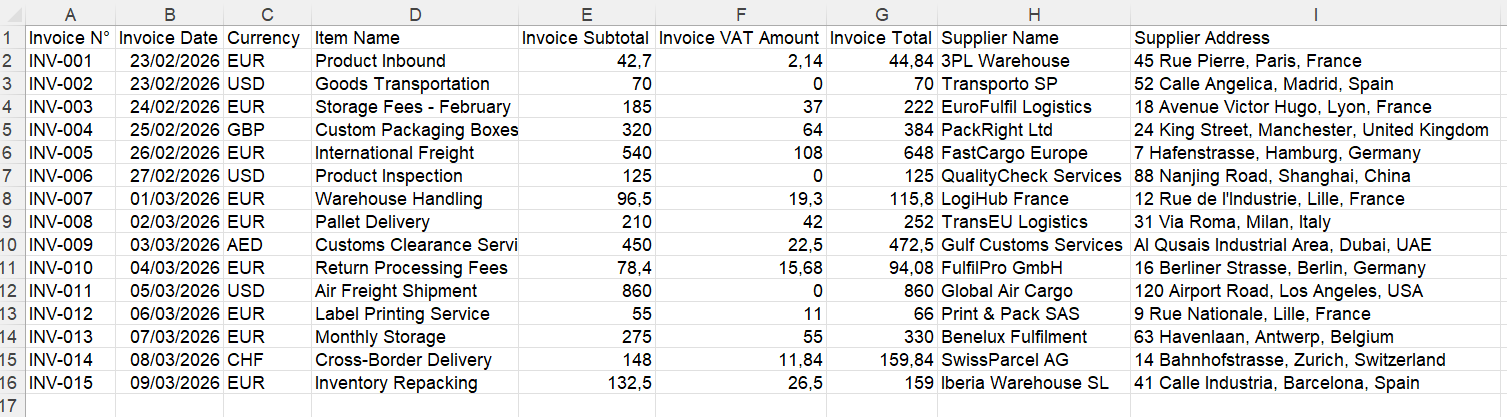
Example export. Your field selection determines the spreadsheet columns.
Keep references and dates clear
Invoice numbers can include letters, slashes and leading zeros, so treat them as text. Different suppliers can use the same invoice number: compare the supplier and reference together when checking duplicates, then confirm against the originals.
The invoice date is not necessarily the payment due date or service date. Dates are extracted as text; review ambiguous formats before converting them for date calculations in Excel.
Separate amounts from currency
Subtotal, tax amount and total describe different values. Do not confuse the invoice total with an outstanding balance after a deposit or payment. Add a clearly named custom field if you need that balance.
Currency identifies the money unit; it is not the amount. IntoExcel is instructed to use a code when the document makes the currency clear and retain an uncertain symbol rather than assume a currency. Keep different currencies separate when adding amounts.
Add item fields for purchasing analysis
Choose one row per item when you need to compare products, quantities or prices.
Keep supplier and invoice number as shared references, then select:
- Item name — Text: the product or service description.
- Quantity — Number: the quantity shown.
- Unit price — Number: the price per stated unit.
- VAT percentage — Percentage: the rate associated with the item.
- Item VAT amount — Number: the tax amount associated with the item.
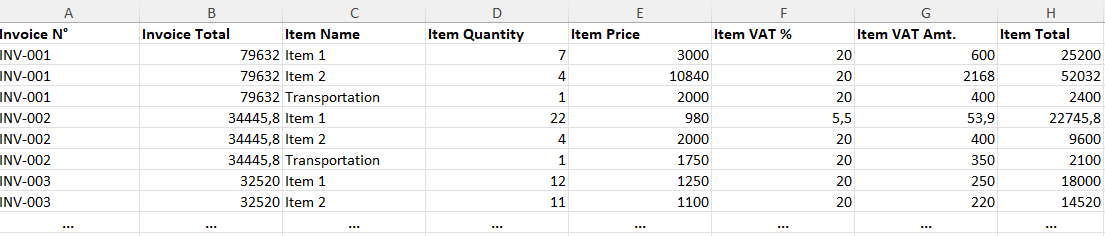
Example of item rows. Available default fields cover the items listed above; add a custom Number field for a line total if needed.
Use a precise custom label such as “Line total excluding tax, as shown on the invoice.” Discounts, shipping charges or rounding may mean quantity multiplied by unit price does not explain every total.
Shared invoice totals may repeat on item rows. Do not sum a repeated invoice total as though it were an individual line amount. Also check whether quantities refer to pieces, packs, hours or another unit before comparing prices.
Add custom fields only when they help
Here are possible additions, depending on what your documents contain:
| Custom field | Suggested kind | Purpose |
|---|---|---|
| Purchase order reference | Text | Link to an order record |
| Payment due date as printed | Text | Capture a separate date |
| Supplier product code | Text | Preserve item identifiers |
| Unit of measure | Text | Distinguish pieces, boxes or hours |
| Delivery charge excluding tax | Number | Separate delivery costs |
| Discount rate | Percentage | Capture a stated percentage |
These are examples of requests, not promises that every invoice contains the values. Missing information should stay empty rather than be invented.
Additional default fields include supplier address, supplier VAT number, customer name, billing address and delivery address. Choose them when they answer a specific need rather than collecting every field automatically.
Select and extract your fields with IntoExcel
- Open the IntoExcel extraction page and upload readable invoice PDFs or images.
- Expand the invoice category and tick the fields you need. Opening the category does not select everything; use its select-all button if required.
- Add custom fields and choose Auto, Text, Number, Percentage or Currency.
- Choose your row layout and start extraction.
- Review and edit the results, then download the Excel file.
Use separate files for separate documents. If a file contains several distinct documents, IntoExcel processes only the first.
Check the values before using them
Compare supplier names, references, dates and amounts with the originals. Check that tax rates and tax amounts have not been confused, and investigate missing or ambiguous values. An empty cell is not zero.
IntoExcel uses AI and can make mistakes. Capturing a tax amount does not establish whether its treatment is correct, and a downloaded spreadsheet does not automatically post accounting entries.
A useful first selection is the seven-field register above. Add item detail or custom fields when your task needs them, then keep that selection consistent across similar documents.
Ready to try it yourself?
Stop wasting hours on manual data entry. Extract your PDF data to Excel instantly with our AI-powered tool.
Extraction