Italy FatturaPA: How to Convert Electronic Invoice XML to Excel
A practical guide to organizing Italian electronic invoices, choosing columns and avoiding duplicated totals when exporting to Excel.
To convert FatturaPA XML to Excel, start with the structured data already available in your invoicing software. A direct export is usually the clearest route. If you need a spreadsheet from a readable invoice copy, IntoExcel.com offers a PDF and image extraction workflow.
IntoExcel currently accepts PDFs and images, not standalone XML files. The PDF route below requires a separate rendering step in compatible software.
Product features and official guidance checked on November 6, 2026.
What is the FatturaPA file?
FatturaPA is an Italian electronic invoice format based on XML. Italy’s Sistema di Interscambio (SdI) handles electronic invoice exchange. See the Italian Revenue Agency’s electronic invoicing overview.
Think of three separate outputs: the structured invoice, a readable representation and an Excel working table. They serve different purposes. IntoExcel does not submit invoices to SdI or validate FatturaPA compliance.
Route 1: export the structured invoice data
Use this route when your accounting system or invoice software supports a suitable export.
- Select the invoices and period you need in that system.
- Look for a CSV or Excel export covering invoice details, rather than only a summary report.
- Choose whether you need invoice totals or individual invoice lines.
- Map exported columns to a consistent register, preserving invoice references as text.
- Compare document counts and selected amounts against the originals before using the workbook.
Features, menu names and export charges depend on your existing provider. Ask which fields and line details are included before relying on its output.
XML contains nested information. A generic conversion that flattens every repeated section can duplicate records. Keep invoice summaries, item lines and payment details separate where their relationships differ. Renaming an XML extension to .xlsx does not convert it.
Route 2: extract a readable invoice copy with IntoExcel
If direct export is unavailable or you are working with PDF copies, open the invoice in software that understands its format. Where available, export or print the readable representation to PDF. Check every page and the fields needed for your task. This preparation happens outside IntoExcel.
Then:
- Open the IntoExcel extraction page.
- Upload a readable PDF or image, keeping one distinct invoice per file.
- Select fields or create custom fields with a name and kind.
- Choose one row per document for a register, or one row per item for product and service analysis.
- Extract, review the editable table, correct errors and download Excel.
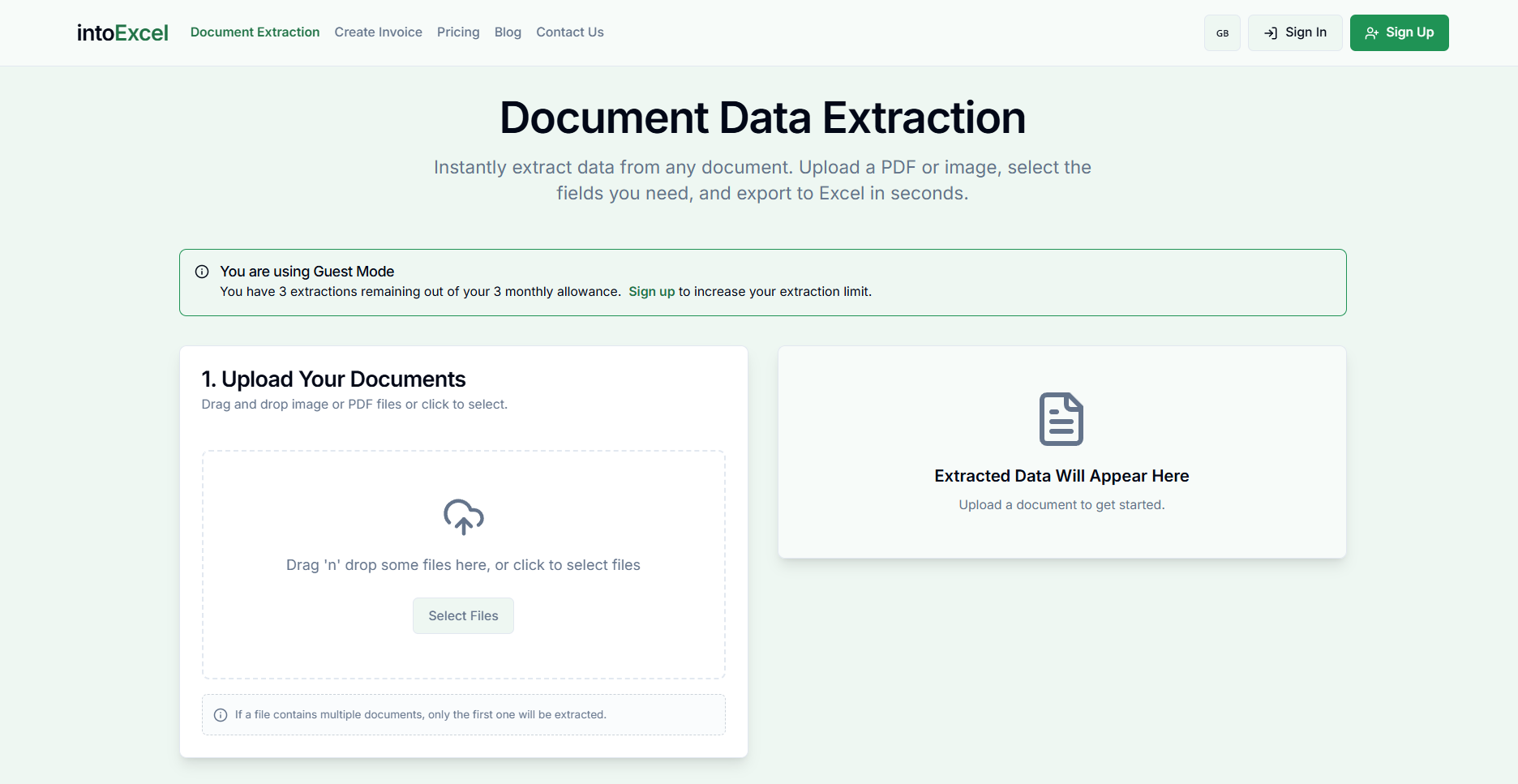
IntoExcel extracts what is visible in the supplied copy. It does not retrieve XML fields missing from that representation.
Which columns should you choose?
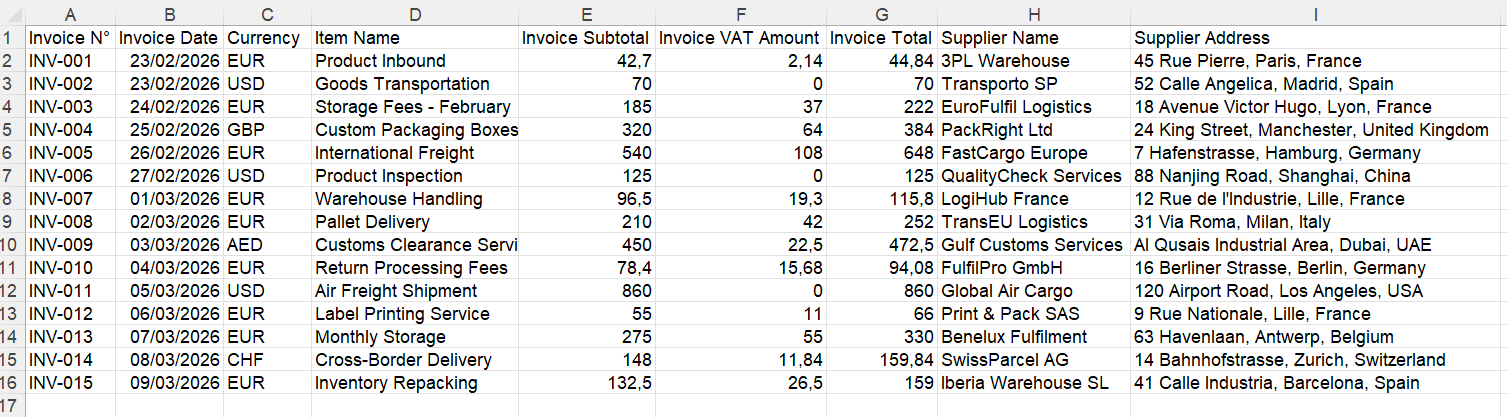
| Field | Suggested kind | Review |
|---|---|---|
| Supplier, VAT identifier, invoice number | Text | Preserve identifiers and leading zeros |
| Invoice date and due date | Text | Use a consistent date convention |
| Net amount, VAT amount, total | Number | Compare each amount with its source |
| Currency | Currency | Keep different currencies separate |
| VAT rate | Percentage | Check documents with several rates |
| Item description and quantity | Text / Number | Match each row to the correct item |
Custom kinds are Auto, Text, Number, Percentage and Currency. These suggestions form an internal register, not a complete legal invoice schema.
Check the result before combining invoices
In item mode, shared invoice totals can repeat on each row. Do not sum them as separate invoices. Check credit-note signs, discounts, charges and rounding before comparing totals.
Missing information remains blank; blank does not mean zero. Keep a source filename or link in your working register so each row can be checked. Add payment status from accounting records rather than assuming an invoice has been paid.
The current extraction flow processes the first distinct document in a file and returns up to 500 rows per file. Review any notices and check completeness.
Keep the original and the working file
Keep the source XML and related records in your established invoice-retention process. Downloading Excel does not provide compliant electronic preservation. The Revenue Agency’s preservation guidance explains the separate process.
For example, a purchasing team could use structured exports for current invoices and IntoExcel for older readable PDFs needed in a separate review. It would check both sets before combining matching columns. This is a hypothetical workflow, not a customer story or measured savings claim.
Start with one readable invoice on IntoExcel.com, or read our structured invoice-to-Excel guide for more detail on row layouts.
Ready to try it yourself?
Stop wasting hours on manual data entry. Extract your PDF data to Excel instantly with our AI-powered tool.
Extraction