Germany E-Invoicing: Convert XRechnung and ZUGFeRD Data to Excel
Choose between direct structured-data export and extraction from a readable invoice copy, while keeping the original German e-invoice intact.
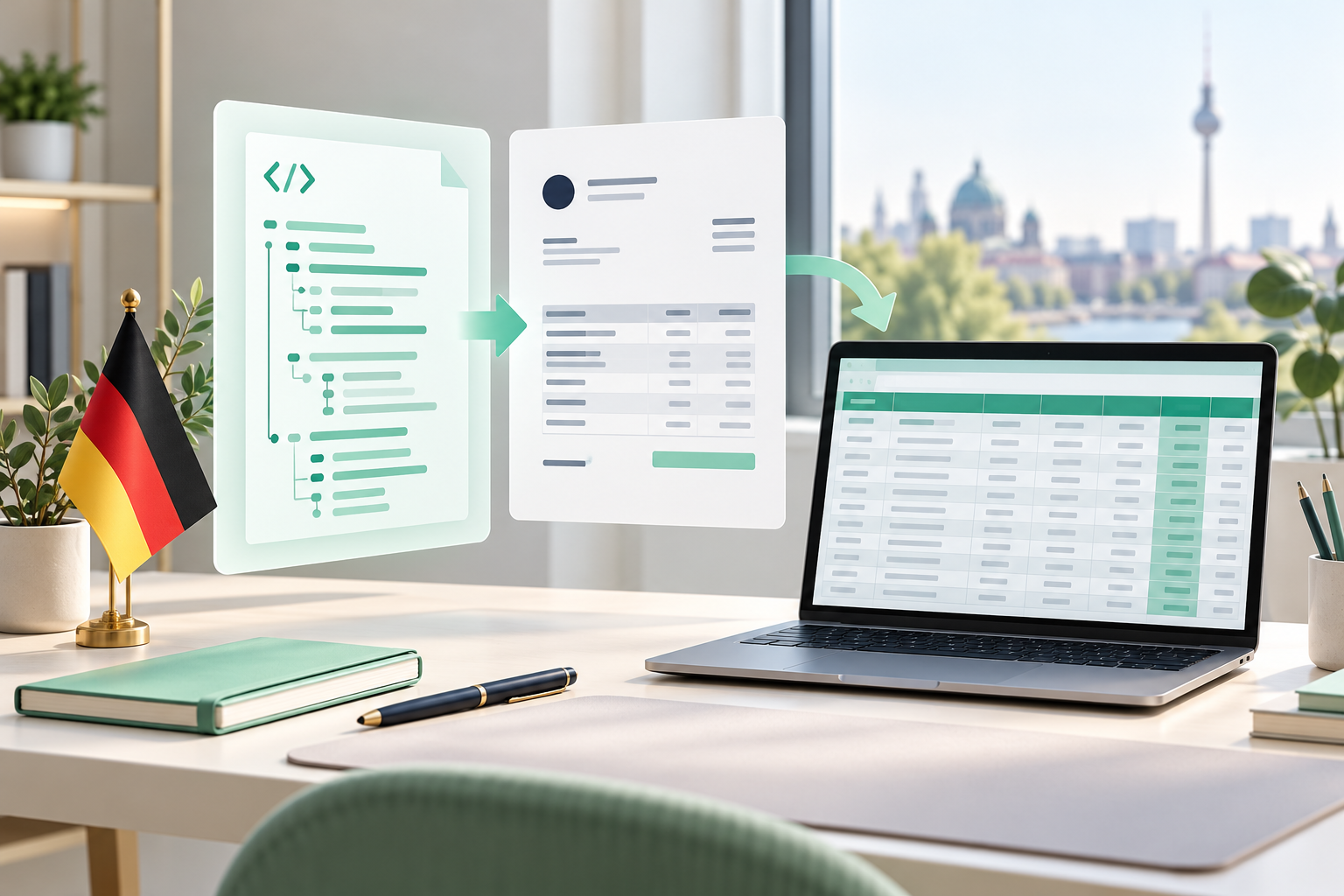
Searching for XRechnung to Excel or ZUGFeRD to Excel starts with a question: do you need to process the original structured invoice, or create a spreadsheet for review?
IntoExcel.com currently accepts PDFs and images, not standalone invoice XML. It can help build an Excel table from a readable invoice representation. It is not a native XRechnung parser, ZUGFeRD XML validator or e-invoice submission service.
This guide reflects the app and official guidance checked on October 29, 2026.
Understand the file before converting
XRechnung is a structured XML invoice standard; a readable view requires visualization. See the federal e-invoicing FAQ.
ZUGFeRD commonly combines a readable PDF/A-3 invoice with embedded XML. See FeRD's format explanation. A filename ending in PDF alone does not establish that it is a valid ZUGFeRD invoice.
For German domestic B2B invoicing, receiving readiness began in 2025; issuance has transitional rules through 2026 and, in specified cases, 2027. Exceptions apply. Check the Finance Ministry FAQ for your situation. Public-sector invoicing has its own requirements.
Choose the right route to Excel
| What you have | Recommended starting point |
|---|---|
| XRechnung XML | Ask your accounting system for a structured export |
| XML with no suitable export | Create a readable rendering in compatible software before using IntoExcel |
| ZUGFeRD with a readable PDF | Prefer structured export; alternatively extract visible PDF fields |
| Ordinary PDF or scan | Upload directly to IntoExcel and review |
A direct export can preserve fields that a visual rendering does not show. If you already have reliable structured data, there is little reason to ask AI to read it again from an image.
For the readable-copy route, use software that understands the invoice format. If it supports printing or exporting that rendering to PDF, check that the copy includes all required pages and fields. Renaming an XML file to .pdf does not convert it. This preparation happens outside IntoExcel.
Extract a readable invoice with IntoExcel
1. Preserve the source
Keep the original XML or hybrid invoice in your existing retention process. Treat a rendered PDF and the resulting Excel file as working copies. The spreadsheet does not replace the electronic original.
For a ZUGFeRD PDF, IntoExcel's current workflow is based on the visible document; it does not validate or reconcile the embedded XML. Investigate any discrepancy between representations in your invoicing system.
2. Select your columns
Open the IntoExcel extraction page, upload one distinct invoice per file and choose default or custom fields.
| Suggested column | Kind | Check |
|---|---|---|
| Supplier, invoice number, buyer reference | Text | Preserve identifiers and leading zeros |
| Invoice date and due date | Text | Confirm the date convention |
| Net amount, VAT amount, total | Number | Compare with source values |
| VAT rate | Percentage | Review invoices with several rates |
| Currency | Currency | Confirm the currency stated |
| Description and quantity | Text / Number | Use for item-level analysis |
Custom fields require a name and kind: Auto, Text, Number, Percentage or Currency. These columns are a management suggestion, not a complete legal invoice schema. A field can only be extracted from the copy if its information is present.
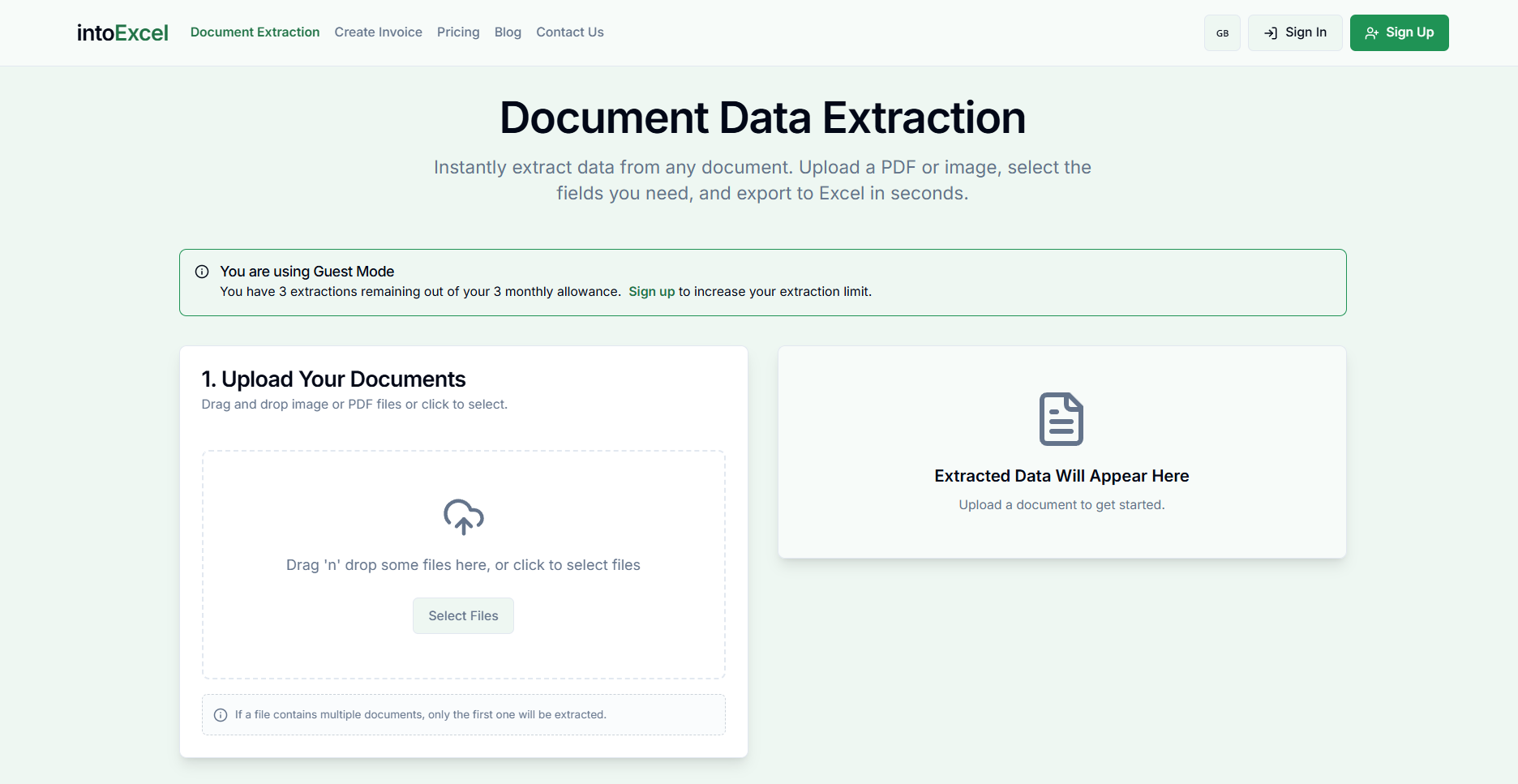
3. Choose the row structure
Choose one row per document for an invoice register. Choose one row per item for repeated product or service entries. Shared invoice totals may repeat on item rows: do not sum them as separate invoices.
Extract, review the editable table, correct errors and download Excel.
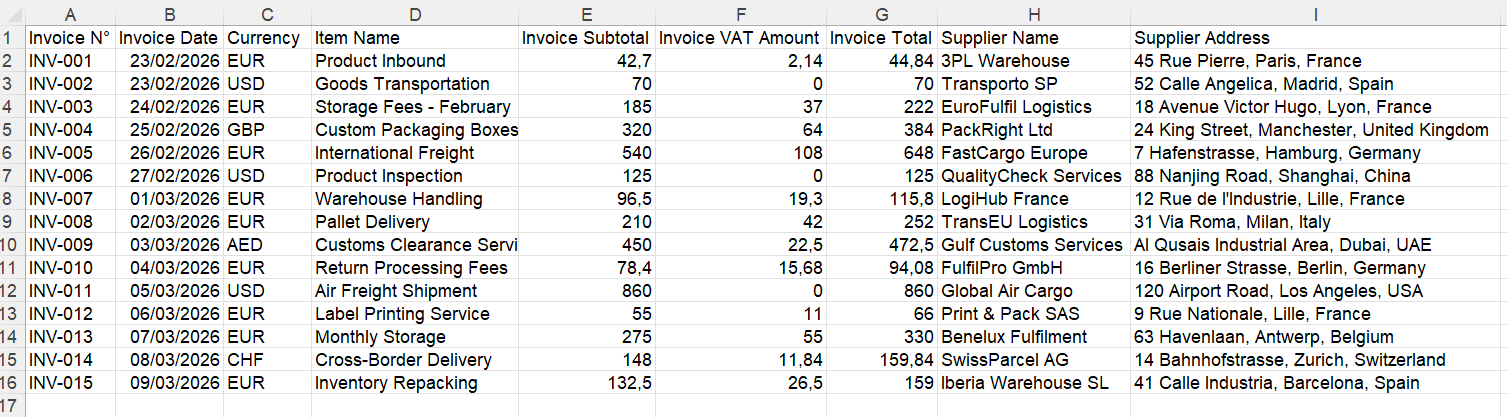
Example of a working register, not a validation report.
4. Check completeness
Compare invoice references, amounts, currencies and item counts with the source. Missing values remain blank, not zero. If a readable rendering omitted a field, return to the structured invoice rather than guessing.
The current flow processes the first distinct document in a file and returns up to 500 rows per file. Review notices and keep separate invoices in separate files. An exported workbook does not confirm payment, tax treatment or e-invoice compliance.
A hypothetical workflow for a small business
A retailer receives XRechnung XML and ZUGFeRD invoices from different suppliers. Its accounting software exports structured records where possible. For a separate internal review, staff use readable PDF copies to extract the same selected columns with IntoExcel.
They compare the workbook to the originals and flag discrepancies. The spreadsheet helps organize purchasing information; the accounting system continues to handle the original invoices. This is an illustrative process, not a customer story or measured savings claim.
Pricing and next steps
IntoExcel offers 20 free extractions/month, Pro at $9/month for 200, and Business at $40/month for 1,000. See current plans. These prices cover extraction, not external XML software or statutory archiving.
Try one readable invoice on IntoExcel.com, then follow the structured invoice-to-Excel guide. Keep structured processing where it is available, and use reviewed extraction where a spreadsheet from a readable document is useful.
Ready to try it yourself?
Stop wasting hours on manual data entry. Extract your PDF data to Excel instantly with our AI-powered tool.
Extraction