Best Bank Statement to Excel Tools in 2026
Choose a bank statement converter for your PDFs, scans and transaction columns, with practical checks before using the exported Excel file.
A useful bank statement to Excel converter does more than produce a file that opens. You need complete transaction rows, readable descriptions and amounts you can calculate with. The right option depends on whether your statement is a scan, a text-based PDF or a recurring bank layout.
This comparison is published by IntoExcel.com, not an independent testing laboratory. These are options for different workflows, not a measured accuracy ranking. Prices were checked on October 14, 2026; USD offers, billing terms and local taxes can differ.
Which approach fits your statements?
| Tool | Workflow to evaluate | Main check |
|---|---|---|
| IntoExcel | Choose transaction fields and export Excel | Item rows and extraction notices |
| Docparser | Reuse rules for recurring layouts | Rule maintenance when layouts change |
| Adobe Export PDF | Convert PDF tables into a workbook | Split descriptions and repeated headers |
| Tabula | Select tables from text PDFs locally | Scans need another approach |
Before paying, check whether your bank already offers a transaction download for the required period. If it provides suitable CSV data, converting the PDF may be unnecessary.
1. IntoExcel: choose your transaction columns
IntoExcel accepts PDFs and images, lets you select fields and offers an editable results table before Excel export. For a bank statement, choose one row per item so transactions can become individual rows. One row per document is better for a statement summary.
Create custom fields such as:
| Column | Kind |
|---|---|
| Transaction date, description, reference | Text |
| Debit, credit, running balance | Number |
| Transaction currency | Currency |
| Account identifier | Text |
These are suggested custom columns. Keep identifiers as text to preserve leading zeros. Request separate debit and credit columns when that matches the statement; do not assume a negative sign always means the same thing across banks.
Quick start: open the extraction page, upload one statement, select bank fields and custom columns, choose item rows, extract, review and download Excel.
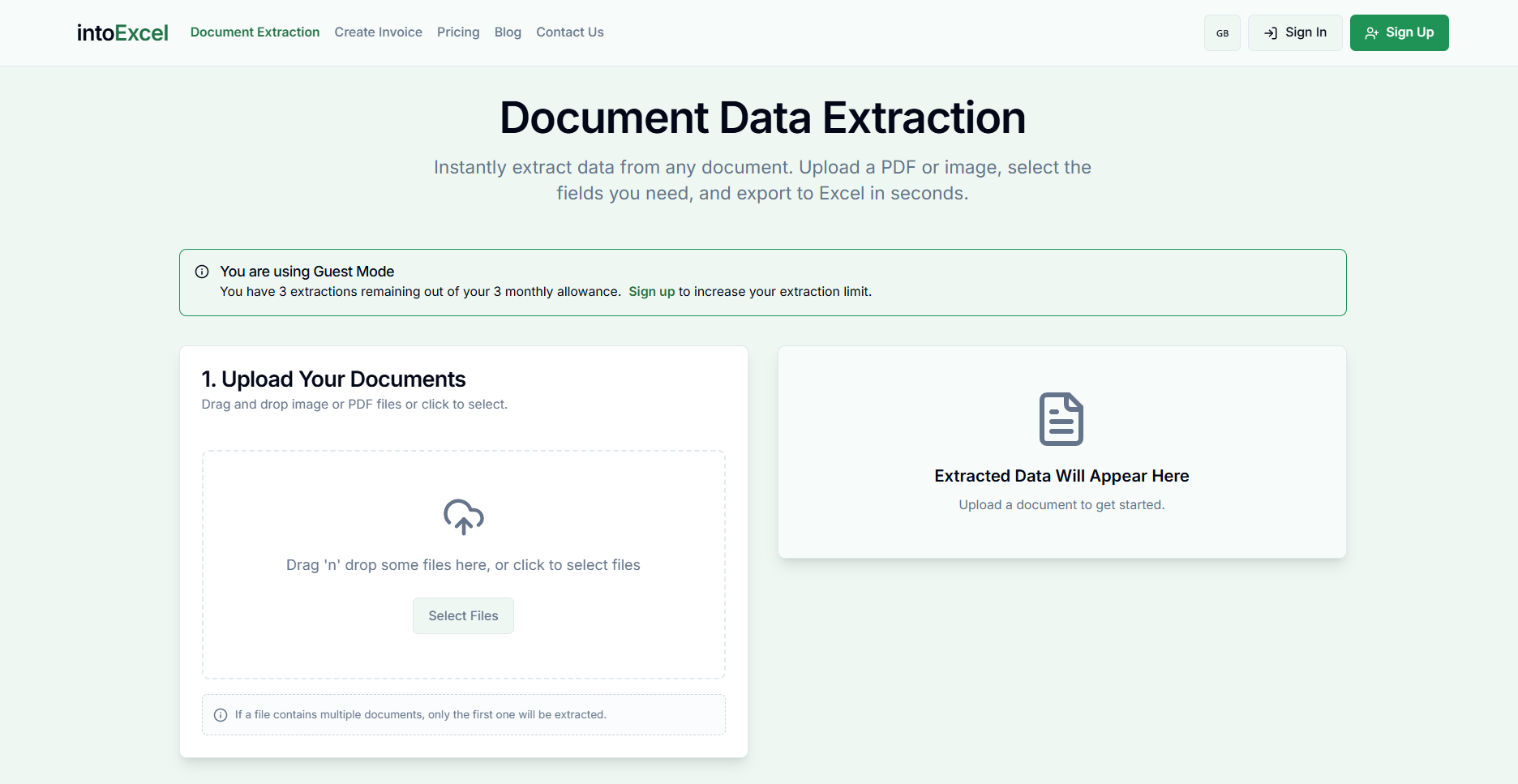
Price: Free includes 20 extractions/month; Pro is $9/month for 200; Business is $40/month for 1,000. See current plans. An extraction allowance is not a page allowance.
Limits: the current flow processes the first distinct document in a file and returns at most 500 rows per file. Keep separate statements in separate files and inspect notices. Missing values remain blank. IntoExcel extracts data; it does not connect to your bank, verify a statement's authenticity or automatically reconcile transactions.
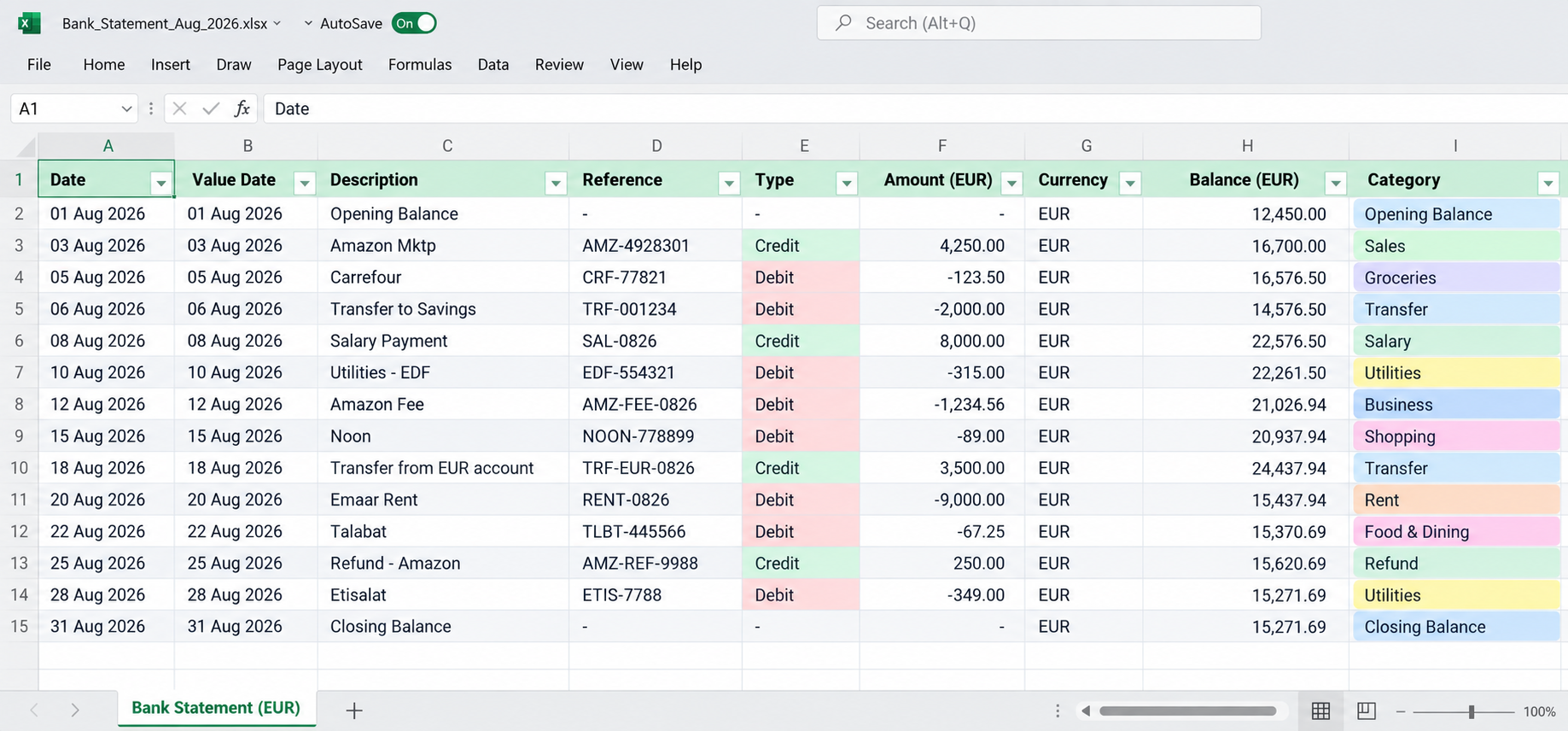
Example of transaction-level output; verify your own results against the original statement.
2. Docparser: reusable extraction rules
For a repeated bank layout, evaluate Docparser's bank-statement workflow. Our suggested test is to include a later month's statement with changed headings.
Price: Starter is $39/month for 100 credits; each credit covers a document up to five pages. Pricing.
Start: create a parser, upload a sample, define table and field rules, test, then export Excel. Rule guide.
Limits: default 20 MB and 50 pages; scanned OCR documents have a fixed 50-page ceiling. Limits. Include rule-adjustment time in your comparison.
3. Adobe Acrobat Export PDF: convert an existing table
This is a candidate when the statement's existing table is close to the layout you want.
Price: the US Export PDF offer is $23.88/year, billed annually, for unlimited conversions. This is not Acrobat Pro. Product and pricing.
Start: in Acrobat web, choose Convert → Export a PDF, upload the statement, choose Microsoft Excel and export. Tutorial.
Limits: files over 100 MB are rejected; complex files may fail below that size. Conversion limits. Our suggested check is whether multiline descriptions stay with their amounts.
4. Tabula: free local extraction from text PDFs
Tabula is free and open source, but requires text-based PDFs; it does not process scans.
Start: import the PDF, select the transaction table, preview and export CSV for Excel. Instructions.
Limits: local installation and system compatibility need checking; the published desktop release is old. Project and installation. Our suggested test is a multipage statement: confirm that selected regions cover all transactions. Budget for manual cleanup rather than assuming free software means no work.
Check the spreadsheet before relying on it
Use the same statement to compare candidates. Record omitted rows, incorrect amounts and correction time; do not choose from a conversion-success message alone.
- Compare the first and last transaction on every page.
- Remove repeated headers, not legitimate repeated transactions.
- Check dates, especially ambiguous day/month order.
- Confirm amounts are numbers and that currency is kept separate.
- Compare the opening and closing balance using the statement's own sign convention.
Hypothetical example: an opening balance of 1,000, credits of 500 and debits of 200 gives a closing balance of 1,300 for a straightforward deposit account. A mismatch is a reason to investigate, not permission to change extracted amounts until they balance. Matching totals alone do not prove every row is correct.
Which should you try first?
For custom columns across documents and scans, test IntoExcel.com. For fixed layouts, evaluate rule-based parsing; for a table already arranged as needed, try conversion; for local text-PDF extraction, evaluate Tabula. Review each service's data-handling terms before uploading sensitive statements.
Read our bank statement extraction guide for field setup. Start with one representative statement and choose the workflow that leaves you with the most usable, checked table.
Ready to try it yourself?
Stop wasting hours on manual data entry. Extract your PDF data to Excel instantly with our AI-powered tool.
Extraction