Belgium Peppol E-Invoicing: How to Organize Invoice Data
Build a practical invoice register from structured exports or readable PDFs, while keeping Peppol exchange and spreadsheet review separate.
Receiving an electronic invoice is only the start. You may still need a purchasing register, a list of invoices awaiting review or a spreadsheet for comparing suppliers. Belgium Peppol e-invoicing makes structured exchange central to the workflow; a well-organized Excel file can support the work that follows.
IntoExcel.com helps extract data from PDFs and images into Excel. It does not connect to Peppol, issue compliant e-invoices or import standalone UBL/XML files.
Information checked on November 2, 2026.
What changed in Belgium in 2026?
Since January 1, 2026, structured e-invoicing applies to nearly all domestic transactions between Belgian VAT-liable businesses. Check exceptions and your situation in the official Belgian guidance.
Peppol is the exchange network; Peppol BIS defines structured invoice information using UBL/XML. A PDF alone is not the required structured invoice. See the official explanation of how e-invoicing works.
Peppol BIS is the default format; alternatives require agreement and conformity with the European standard. The government FAQ explains this distinction.
Start with the best available data
Before extracting a PDF, check what your existing accounting or Peppol-connected software can export.
| Available source | Practical approach |
|---|---|
| Reliable CSV or Excel export | Use it directly and map its columns to your register |
| Structured invoice without a suitable export | Ask your software provider about data export or a readable rendering |
| Readable PDF copy | Extract the visible fields with IntoExcel and review them |
| Older invoice scan or ordinary PDF | Use extraction to bring it into the same working table |
Re-reading structured data with AI can introduce unnecessary errors. Use IntoExcel when a readable document is the practical source for a separate spreadsheet.
If your software can export a readable invoice to PDF, check that all pages and required fields are included. Renaming XML to PDF is not a conversion. Keep the original structured invoice in your retention process; the spreadsheet is a working register.
Design an invoice register before uploading
Choose a consistent set of columns across suppliers. These suggestions are for internal organization, not a complete legal invoice schema.
| Column | IntoExcel kind | Why it helps |
|---|---|---|
| Supplier name and VAT number | Text | Identify the supplier without losing leading zeros |
| Invoice number and document type | Text | Distinguish invoices from credit notes |
| Invoice date and due date | Text | Review dates using one convention |
| Purchase-order or buyer reference | Text | Connect an invoice to the relevant purchase |
| Net amount, VAT amount, total | Number | Compare source amounts and calculate reviewed totals |
| Currency | Currency | Keep different currencies separate |
| Item description and quantity | Text / Number | Analyze repeated products or services |
Add payment status, reviewer, source-file reference and review date manually in Excel or from your accounting system. They may not appear on the invoice and should not be inferred from its presence.
Extract a readable PDF with IntoExcel
- Open the IntoExcel extraction page.
- Upload a readable PDF or image, with one distinct invoice per file.
- Select existing fields or create custom fields with a name and kind: Auto, Text, Number, Percentage or Currency.
- Choose the row structure, run extraction and inspect the editable result.
- Correct errors before downloading the Excel file.
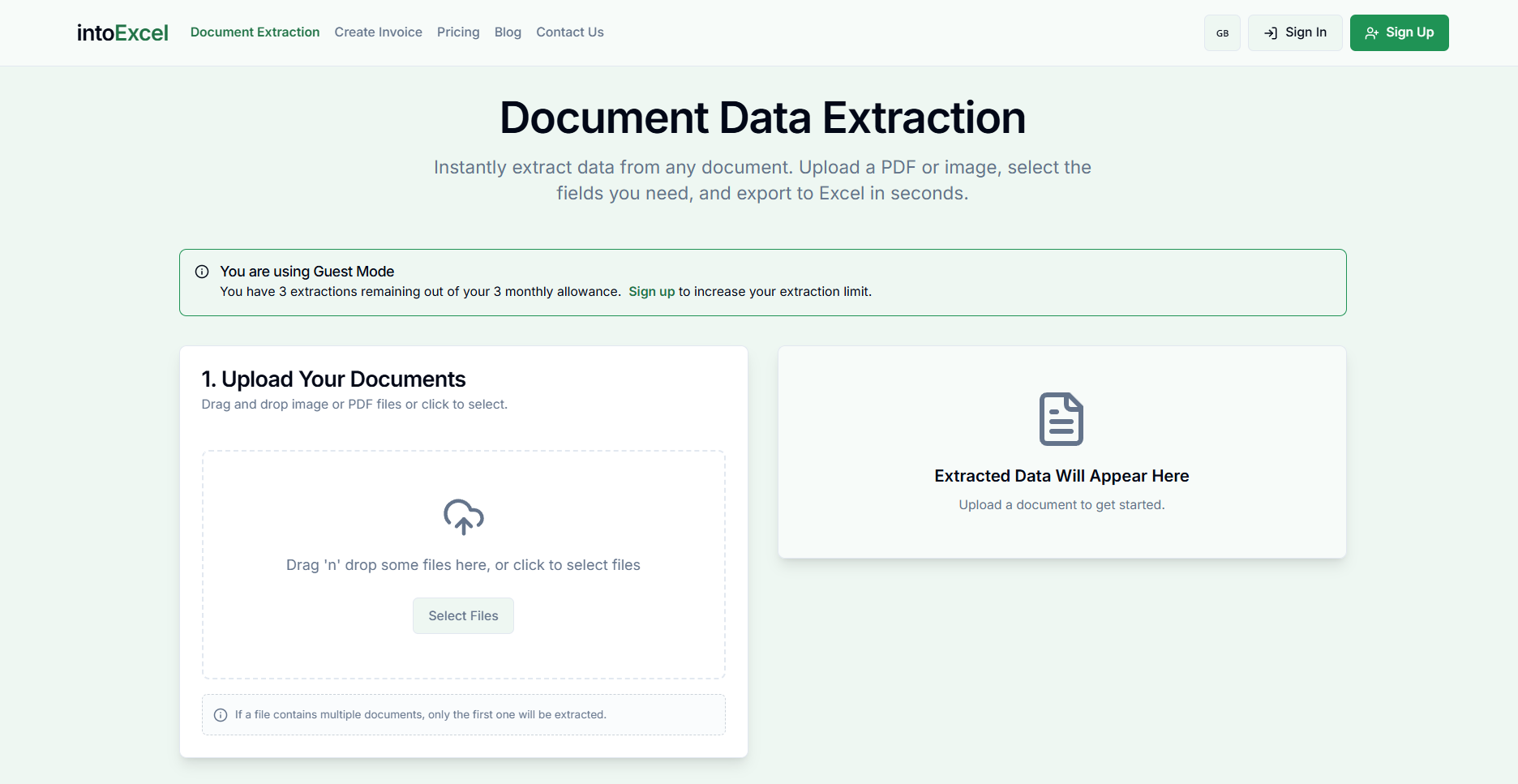
Choose one row per document for an invoice register. Choose one row per item for purchase analysis. In item mode, shared invoice totals can repeat: summing those cells would count the same invoice more than once.
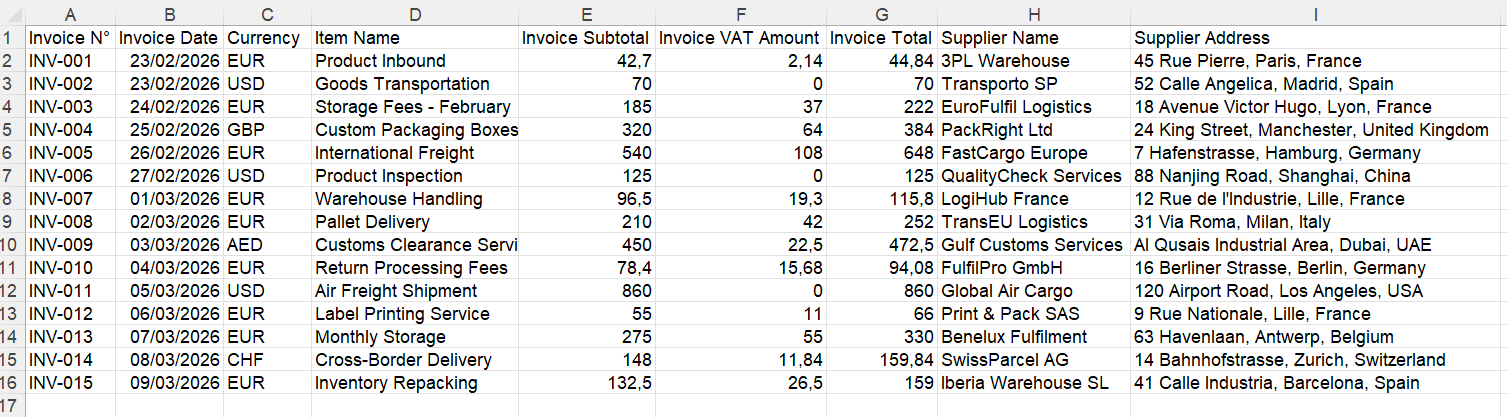
The current flow processes the first distinct document in each file and returns up to 500 rows per file. Read any notices. Missing values remain blank; a blank amount is not zero.
Keep the spreadsheet useful and traceable
- Check duplicates: compare supplier identifier, invoice number, date and amount. Do not delete a suspected duplicate without checking the original.
- Separate currencies: do not add EUR and USD totals together without an explicit conversion method.
- Review credit notes: retain the document type and original invoice reference where shown. Confirm the sign convention before calculating balances.
- Check totals: compare net, tax and payable amounts with the source, including discounts, charges and rounding.
- Keep a source reference: add a link or filename so a colleague can return to the original.
An Excel export does not prove that an invoice was paid, delivered through Peppol or legally validated.
A hypothetical monthly workflow
A Belgian consultancy exports available structured records from its accounting system. For older PDF invoices needed in a separate purchasing review, it uses IntoExcel with the same column names. A staff member checks the results, records source references and flags discrepancies before combining the tables.
This is an illustrative workflow, not a customer story or a measured savings claim. IntoExcel supplies the extraction step; the business still controls review, accounting and invoice retention.
Start with one readable invoice on IntoExcel.com. For more detail on columns and row layouts, read our guide to structured invoice-to-Excel exports.
Ready to try it yourself?
Stop wasting hours on manual data entry. Extract your PDF data to Excel instantly with our AI-powered tool.
Extraction