How to Extract Data From a PDF to Excel (Step-by-Step Guide)
From copy and paste to AI chat and IntoExcel: discover how each PDF-to-Excel method works, what to check, and how to choose your approach.

Invoices, receipts and bank statements often arrive as PDFs, while the work happens in Excel. You need supplier names, dates and amounts in consistent columns so you can sort, filter and analyze them.
There are three practical approaches: enter the data manually, ask an AI assistant such as ChatGPT, or use a dedicated extraction tool such as IntoExcel.com. This guide explains the steps and trade-offs of each method.
Method 1: Extract invoice data manually
The traditional approach is to open the invoice alongside Excel and copy or type the values yourself.
- Create columns for the supplier, invoice number, date, subtotal, tax, total and currency.
- Open the PDF and locate each value.
- Copy selectable text, or type it if the document is a scan.
- Place each value in the matching column.
- Repeat for the remaining invoices and check the spreadsheet against the originals.
When it helps: you have a few values to transfer and want direct control over every entry.
Where it becomes difficult: copied tables may lose their alignment, and repeated typing creates opportunities to skip a row, transpose digits or confuse a subtotal with a total. As the pile of invoices grows, you repeat the same work for every file.
Method 2: Use an AI assistant such as ChatGPT
An AI chat tool offers another route: provide the document and describe the table you want. OpenAI's guide to working with files explains how to specify an output file and review the result.
For an invoice, you could try this instruction:
Extract the supplier, invoice number, date, subtotal, tax, total and currency from the attached invoice. Use one row per invoice, preserve reference numbers as text, and leave missing values empty. Create an Excel file and flag unclear values for review.
Then work through the result:
- Attach a readable PDF using the file tools available in your account.
- Specify the columns and whether you want document or item rows.
- Request an Excel file, rather than only a table in the conversation.
- Compare the output with the source and request corrections where needed.
When it helps: you want a flexible, one-off extraction or also want to ask questions about the document.
What to watch:
- Document and usage limits: check your account's current upload, file-size and usage limits before planning a large batch. Do not assume every file can be handled in one request.
- Possible mistakes: an AI-produced table can omit an entry, misread a number or place a value in the wrong column. A polished spreadsheet still needs checking.
- Instructions and consistency: define the same columns and row rules for each batch. Vague requests may require follow-up messages and reformatting.
This can be a useful workflow, but writing and refining instructions becomes part of the job. There is no fixed document allowance quoted here: check the limits shown for the product and account you use.
Method 3: Extract PDF data with IntoExcel
IntoExcel provides a dedicated interface for choosing fields, extracting document data, reviewing it and exporting to Excel. You make those choices through the app instead of composing a chat prompt.
Step 1: Upload your files
Open the IntoExcel extraction page and drop your PDFs or images into the upload area, or select them manually.
Use separate files for separate documents. When one file contains several distinct documents, IntoExcel processes only the first.
Step 2: Choose your fields
Select the default fields you need, such as supplier, invoice number, invoice date and total. Add custom fields for information specific to your workflow.
For a custom field, choose Auto, Text, Number, Percentage or Currency. For example, use Text for an order reference, Number for a delivery charge and Percentage for a discount rate. Default fields already have assigned kinds.
Step 3: Choose your rows
Choose one row per document for an invoice register, or one row per item for product details or other repeated entries.
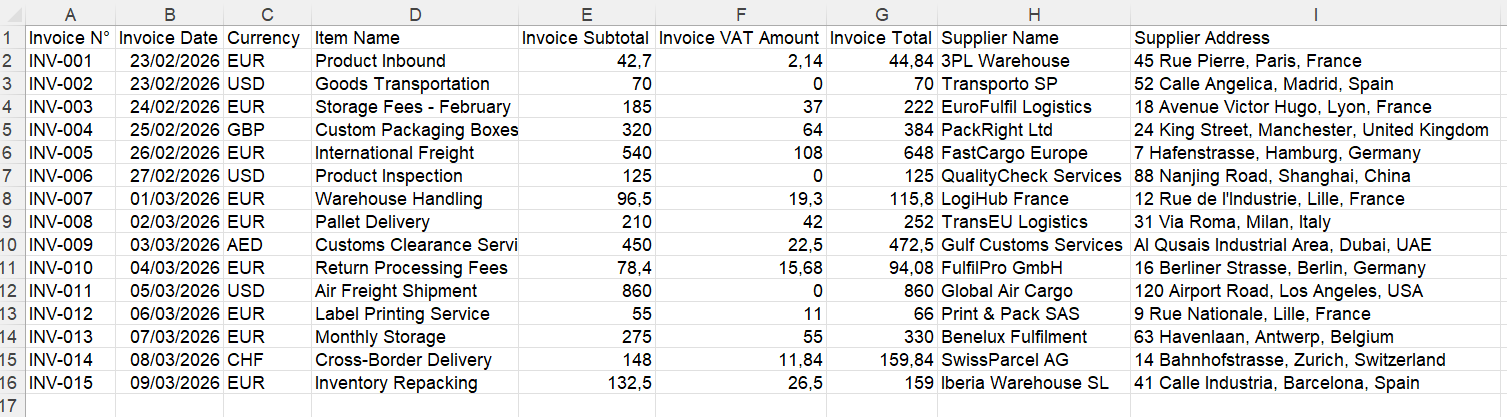
Document-level example. Your selected fields determine the exported columns.
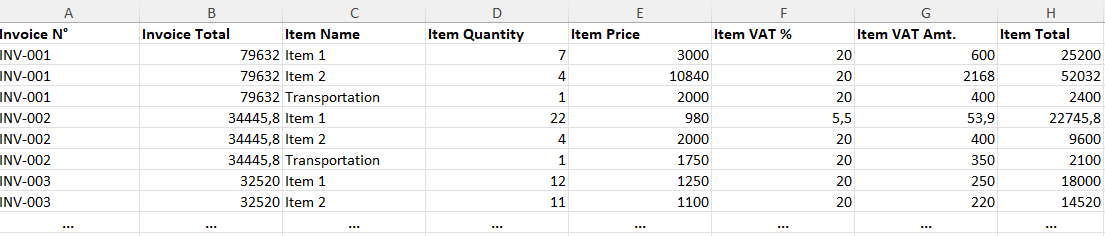
Item-level example. Shared invoice values can repeat: do not sum repeated invoice totals as if they were item amounts.
Step 4: Extract, review and export
Start extraction, compare the results with the original documents and edit any cells that need correction. Then download the Excel workbook.
IntoExcel also uses AI, so review remains necessary. Missing values are left empty, and ambiguous values need your attention. Processing is subject to the app's extraction allowances; the dedicated workflow does not mean unlimited usage.
Which method should you choose?
| Your situation | Approach to consider |
|---|---|
| A few values to copy | Manual entry |
| A one-off task with follow-up questions | An AI assistant |
| Repeated extraction with selected columns and row layouts | IntoExcel |
Whichever method you use, check invoice references, amounts, currencies and missing values before relying on the spreadsheet. Start with a representative document and judge the whole process, including corrections.
Ready to try it yourself?
Stop wasting hours on manual data entry. Extract your PDF data to Excel instantly with our AI-powered tool.
Extraction